
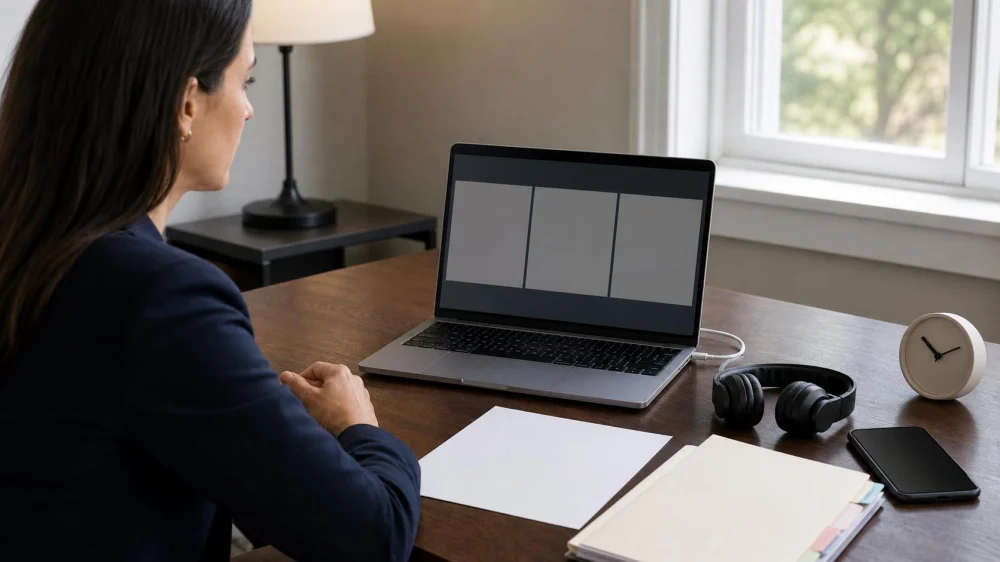
Remote Court Hearing Checklist: Verify the Link and Rules
On this page
- Quick answer
- Confirm the appearance is remote
- Verify the hearing link independently
- Read the case-specific rules and order
- Test the device, connection, audio, and camera
- Prepare a private, quiet appearance space
- Organize documents and exhibits
- Request language or disability access early
- Join and participate on hearing day
- Plan for disconnection or technical failure
- Sources and evidence notes
- Conclusion and next steps
Quick answer
Verify on the official notice and docket whether the hearing is remote, in person, or hybrid. Confirm the platform, date, time zone, link source, registration, identification, exhibits, camera, recording, and backup-call rules with the court—not an unknown sender. Test your device and internet, charge it, prepare a quiet private location, and join at the time the court instructs. Keep the clerk’s official phone number ready in case the connection fails.
This US guide provides general preparation, not legal advice. A judge’s order, docket entry, court notice, local rule, and clerk’s instruction for the specific case control over general online guidance.

Hanlon Law Group P.C. / hanlon law group pc
Los AngelesLos Angeles CountyCalifornia
555 W 5th St 35th floor, Los Angeles, CA 90013, USA
Confirm the appearance is remote
Do not assume that a prior remote hearing means the next one is remote. Courts can schedule different events in person, by video, by phone, or with some participants in the courtroom. Trials, evidentiary hearings, and witness appearances may use different procedures from status conferences.
Read the newest notice and docket entry. Confirm the court name, judge, case number, hearing type, date, time, time zone, and appearance method. Contact your lawyer promptly if represented.

Adamson Ahdoot LLP / adamson ahdoot llp reviews
Los AngelesLos Angeles CountyCalifornia
1122 S La Cienega Blvd, Los Angeles, CA 90035, USA
Verify the hearing link independently
Compare the sender and link with the court’s official website and case notice. If uncertain, use a phone number found independently through the court’s official directory—not a number inside the suspicious message—to call the clerk or courtroom deputy.
A legitimate link may arrive by email, docket notice, calendar, or court platform, depending on the court. Never pay an unexpected fee, buy gift cards, disclose banking information, or install remote-control software to join a hearing.
Read the case-specific rules and order
Check whether the court requires advance registration, a specific display name, video, telephone audio, headphones, a waiting room, identification, an oath, or an early technology check. Note who may attend and whether the link is personal.
Many courts prohibit participants and observers from recording, photographing, streaming, or taking screenshots. Do not assume the platform’s record button is allowed. Follow the specific court’s order and local law.
Test the device, connection, audio, and camera
- Use the same computer, tablet, or phone planned for the hearing.
- Install or update only the official required platform.
- Test speaker, microphone, camera, and internet connection.
- Learn mute, unmute, camera, and leave controls.
- Plug in the device and keep a charger nearby.
- Turn off notifications, incoming-call popups, and automatic updates.
- Use only one audio connection to prevent echo.
Ask the clerk whether a telephone backup or test session is available.
Prepare a private, quiet appearance space
Choose a stable seat with the camera near eye level, front lighting, a simple background, and limited household movement. Remove visible mail, photographs, work documents, medications, and personal information. Use headphones if the court allows them and they improve privacy.
Arrange childcare, pet care, work coverage, and a do-not-disturb plan. Dress and behave as you would in a courtroom. Do not join while driving, walking in public, lying in bed, eating, smoking, or using a distracting background.
Organize documents and exhibits
Remote attendance does not automatically authorize filing or presenting a document. Review deadlines and approved submission methods. Label your private working copy consistently with filed materials and keep the docket, notice, calendar, lawyer contact, and clerk contact accessible.
Ask how exhibits will be shown, whether paper copies are required, and how confidential information must be protected. Do not send evidence directly to the judge or share a screen unless the court authorizes the method.
Request language or disability access early
Contact the court using its official process to request an interpreter, captioning, assistive listening, sign-language service, extra time, accessible technology, or another reasonable accommodation. Do not rely on a family member to interpret legal proceedings unless the court approves it.
Explain any limited internet, device, hearing, vision, speech, cognitive, or mobility issue that affects remote access. Ask whether telephone participation, a courthouse device, or another arrangement is available.
Join and participate on hearing day
- Check the docket and court messages for last-minute changes.
- Restart and plug in the device, then close unrelated programs.
- Join at the time stated in the court’s instruction.
- Enter the required name and wait for court staff to admit or call you.
- Stay muted until addressed and identify yourself as directed.
- Speak slowly, avoid interrupting, and pause for the judge or reporter.
- Do not message another participant privately unless the court permits it.
Plan for disconnection or technical failure
Write down the clerk or courtroom deputy’s official number, case number, and hearing details before joining. If disconnected, follow the court’s stated rejoin procedure. If that fails, call promptly and explain the technical problem without discussing case facts with unauthorized staff.
Do not assume a failed connection excuses nonappearance or extends a deadline. Save factual evidence of the problem, such as an error screen or call log, only when doing so does not violate a no-screenshot rule, and seek legal advice about any required filing.
Sources and evidence notes
The New York State Unified Court System virtual appearance guidance directs uncertain participants to contact the court and warns against recording or screenshots. Its platform preparation guide recommends testing audio and video, using a quiet space, muting when not speaking, and protecting background privacy. A current US Bankruptcy Court remote-hearing guide shows that participant links and public listening access may follow different procedures. These examples reinforce checking the exact court.
Conclusion and next steps
Start with the newest official notice and docket, independently verify the court and link, and read every case-specific instruction. Test the exact device, prepare a quiet private room, organize filed documents, request access support, and keep the clerk’s official contact ready. Never record or improvise a platform rule, and get legal help quickly if a technical failure affects an appearance or deadline.





 Daniella Levi & Associates, P.C.5.0 (12 reviews)
 Caskey, Holzman & Barari4.0 (139 reviews)
 C&B Law Group, LLP4.0 (82 reviews)
 Robinson Franzman LLP4.0 (7 reviews)
 E. Carlton Kromer, Esq.5.0 (46 reviews)
 Dan Lyons Legal, LLC5.0 (1 reviews)
 How to Protect Your Business with the Right Contracts – Expert Legal Advice
 How to Handle a Foreign Investment in Your U.S. Business: Legal Issues
 Missed a Court Deadline? Verify the Docket and Get Legal Help Now
 Understanding Bankruptcy Options: Chapter 7, Chapter 13, and Chapter 11 Explained
 How to Check a Court Form Version Before You File
 How to Legally Address Patent Troll Lawsuits and Defend Your Rights